| Toolbar Button |
Description |
 |
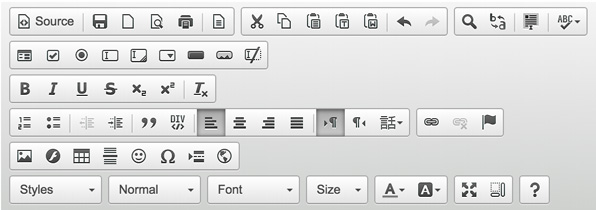
View or edit the source code of the document (for advanced users). See Document Source. |
 |
Save the contents of CKEditor and submit its data to the server, when CKEditor is placed inside an HTML form. See Saving Content. |
 |
Clear the editing area and create a new page. See Creating a New Page. |
 |
Show a preview of the document in the shape that will be displayed to end users. See Document Preview. |
 |
Select a layout template. See Templates. |
 |
Cut the selected text fragment to the clipboard. See Cut. |
 |
Copy the selected text fragment to the clipboard. See Copy. |
 |
Paste content copied to the clipboard along with formatting. See Paste. |
 |
Paste content copied to the clipboard without formatting. See Paste as Plain Text. |
 |
Paste content copied from Microsoft Word or similar applications along with formatting. See Paste from Word. |
 |
Print document contents. See Printing. |
 |
Insert a page break. This only impacts the printed version. See Page Breaks. |
 |
Check spelling of the document text or turn on the Spell Check As You Type (SCAYT) feature. See Spell Checking. |
  |
Undo or redo the most recent action performed. See Undo and Redo. |
 |
Find a word or phrase in the document. See Find. |
 |
Find and replace a word or phrase in the document. See Replace. |
 |
Select all contents of the document. See Text Selection. |
 |
Remove the formatting of the selected text. See Remove Format. |
 |
Maximize the editor in the browser window. See Resizing and Maximizing CKEditor. |
 |
Highlight all block-level elements in the document. See Show Blocks. |
 |
Show information about CKEditor. See CKEditor Version. |


 Editing tools