|
This chapter will explain how to make a list of email recipients, called subscribers, and how to send your email campaigns.
Blink Mailer is a powerful tool: there are several ways to add subscribers and demographic information about them (name, location, interests etc).
In this chapter we are going to cover the most basic scenario.
The chances are, if you are planning to use Blink Mailer, you have some subscribers already. You may have a complex database of contact information, a list you exported from an application, or a simple list of emails on a sheet of paper.
In this example, we will be following the progress of Ethical Pets, who we introduced in the Case Studies chapter. They will be emailing customers of their online shop. The list of emails was obtained by exporting a list of customer emails from their shop software.
First of all you need to create a subscriber list. This will help you organise your subscribers. In Blink Mailer, you must have at least one list, but you can have many of them. In this example, we will create just one list called The Ethical Pets Gazette, which is the name of the Ethical Pets newsletter.
First, navigate to Subscribers > Subscriber lists in the main menu.

This will take you to a page which shows you all your lists. Currently you can see just one list, a system default list called test.
To create a new list click the Add a list button.
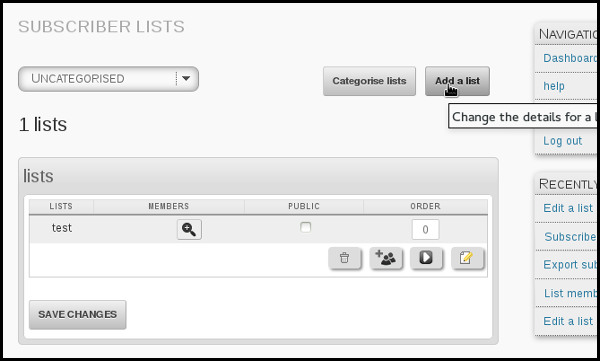
You then need to enter your List name and List description (which may be displayed publicly).
In this case, you tick the Public list box too, because we want people to know about the list.

Once this page is complete, click Save. You can edit this page again later if you need to. Next we click Add some subscribers
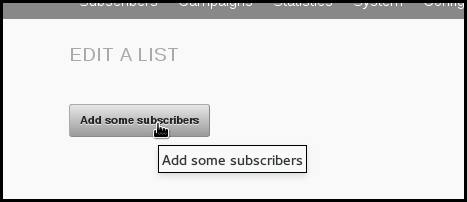
This will bring us to the Import Subscribers by Copy and Paste page.
We now need to copy our list of subscribers. In this case, the list has been stored in Libreoffice Calc. Right click the column which contains the emails and click Copy.

Then, returning to Blink Mailer, we right click in the input box and select Paste.
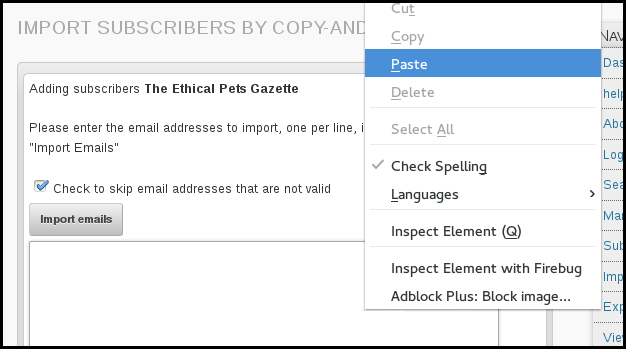
Finally, we click Import emails.
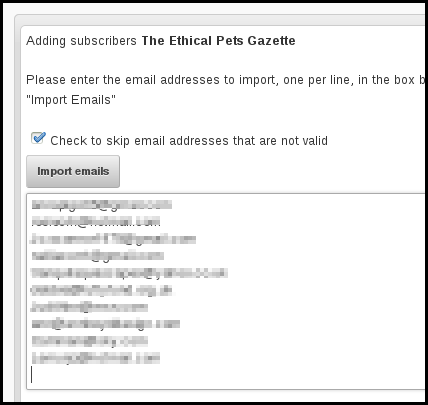
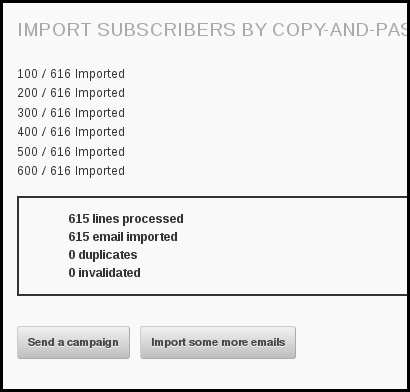
And we are informed of the results of our import,
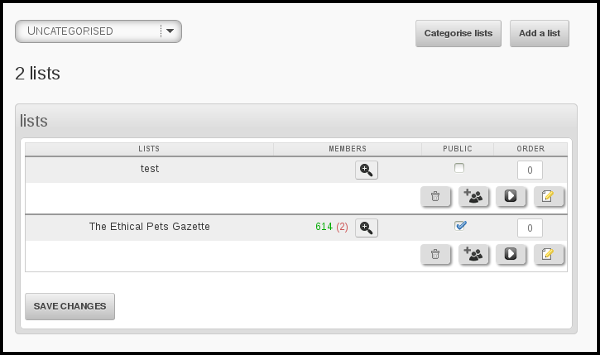
If we return to Subscribers > Subscriber lists in the main menu, we can see the new list and its subscribers.
Before you start to make lists, take some time to consider who you add. A healthy email list is full of people who want to receive your mail: they should have given you their email address voluntarily and ideally been asked for permission before you add them to the system.
There are legal requirements in South Africa which reflect the importance of informed or assumed permission.
The ideal situation is for your list members to join and leave your list as they please. You can set up Subscribe pages so people can subscribe themselves to your lists, and the (mandatory) Unsubscribe link in your emails will allow people to leave if they want to. These are discussed in detail in other chapters.
While you may be keen to spread your message as far and wide as possible, always bear in mind that excessive, aggressive and intrusive emails can tarnish your brand. Don't become a spammer!
|


 Adding