
make marketing affordable now!


|
|---|
 Email Setup:
Email: |
me@my-domain.co.za |
| Incoming (POP) server : | mail.my-domain.co.za |
| Outgoing (SMTP) server : | smtp.my-domain.co.za |
| Account / User Name : | me@my-domain.co.za |
| SMTP Authentication : | Enabled (same Username as POP) |
| Note: If SMTP Authentication is not catered for by your email program, you must rather use your ISP's SMTP server. | |
| SMTP Port : | 587 |
1. Launch Apple Mail.
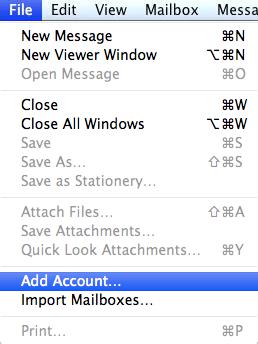
2. From the toolbar at the top, select File and then Add Account.
Mail Account Setup
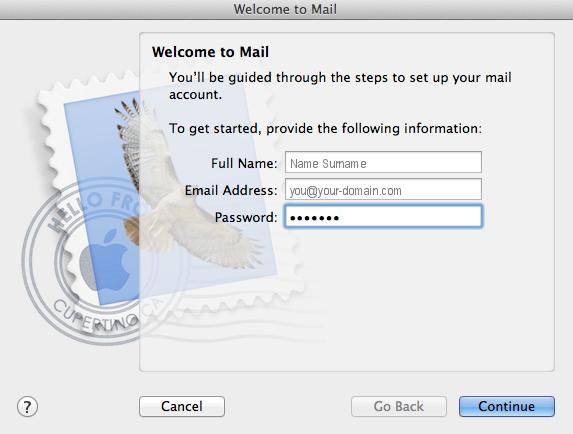
3. Enter your name (which will appear the “From” field in your emails), email address andpassword, then click Continue
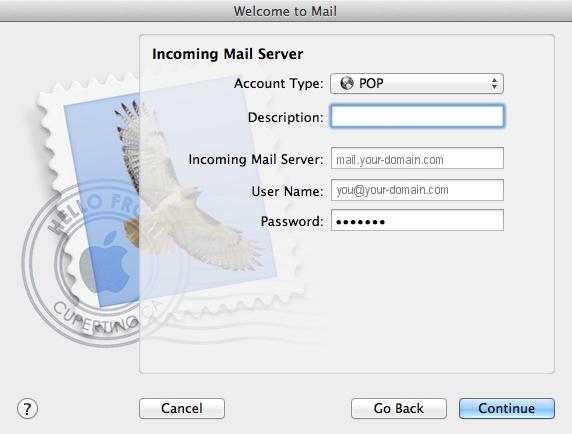
Incoming Server Settings
4. Ensure that the incoming server type is selected as POP, then enter the relevant details as shown below and click Continue. Note : The Description field is optional (e.g. Work email or Home email).
5. Apple Mail will now test the connection to the specified mail server. Once this is complete, click Continue.
Incoming Mail Security
6. When the Incoming Mail Security screen appears, leave Use Secure Socket Layer unticked and click Continue.

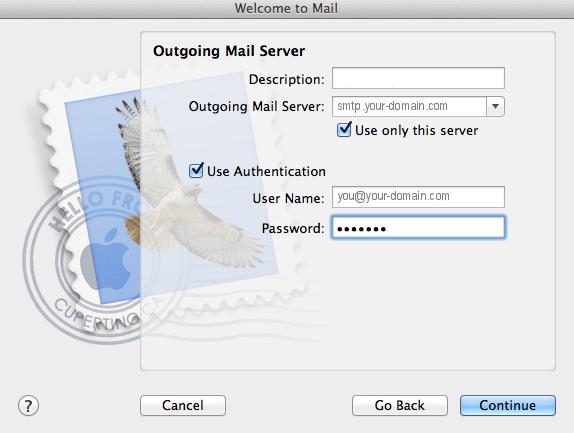
Outgoing Server Settings
7. Enter the outgoing mail server and ensure that the Use Authentication checkbox is ticked.
8. Enter your username and password (if these fields are not automatically populated) then clickContinue.
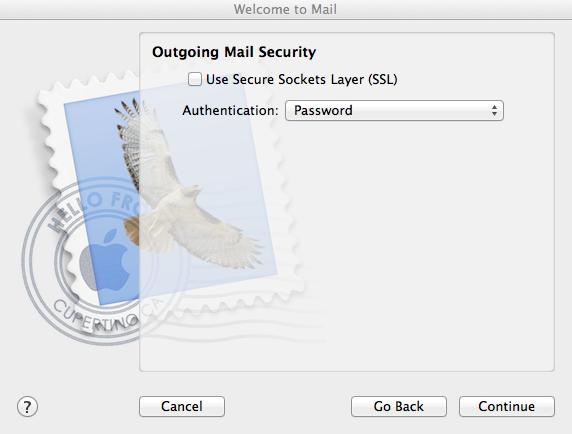
Incoming Mail Security
9. When the Outgoing Mail Security screen appears, leave Use Secure Socket Layer unticked and click Continue.
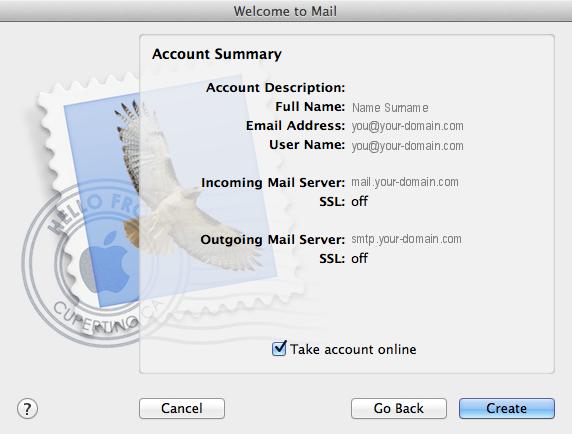
Account Summary
10. View the account summary and click Create. Ticking the Take my account online checkbox will ensure that your account is activated immediately.
You have completed your account setup
11. Your Mac mail program should now be set up to send and receive mail.
Email still not working? Read our Troubleshooting Guide